
Pharos Cloud makes it easy to keep your lighting system up to date without a site visit. You can move project files and firmware between your computer and a controller – even choosing when changes reach the site.
Pharos Cloud has recently added features that make it easier to retrieve, upload and update your controllers’ project files. This article covers the file and firmware tools available to every Pharos Cloud user, as well as the extra controls available to organisations running their own Pharos Cloud Portal.
These features work with Designer LPC and VLC family controllers and Express Control, and need file permissions on the site.
For every Pharos Cloud user
The following options are found on each controller’s page in Pharos Cloud, or in Designer and Express when signed in to Pharos Cloud.
Get the project file from a controller
Before making changes to a project, it is worth starting from what the controller is actually running. The file on a laptop, or the last one uploaded to Pharos Cloud, may not reflect changes made on site. Request Download asks the controller itself for its current project.
- Open the controller in Pharos Cloud and navigate to the Files tab.
- In the Project file section, select Request Download.
- Wait while the controller uploads its project to Pharos Cloud. Larger projects take longer.
- Download the file when it is ready.
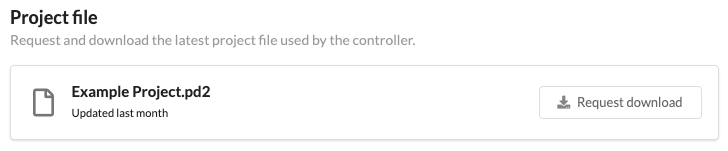
💡 Tip: Requested files are cleared after 24 hours, so be sure to download a copy promptly. Downloading from the main file list is a different feature: this returns the file as it was uploaded, which may not match what is running.
Once your changes are made, export the .upload file from Designer or Express. On the Files tab, select Upload Files, drag the file in, then select it and click Transfer. To send it later, click Schedule Transfer and set a time. Times should be set in the site’s local time zone.
Upload straight from Designer or Express
Pharos Cloud is built into Designer and Express, so a project can go from your software to the controller without opening a browser. Sign in to Pharos Cloud from the software, choose the site, and the Upload dialogue sends the project there directly.
You can choose whether the file transfers to the controller straight away or waits in Pharos Cloud. If it waits, it appears on the controller’s Files tab, ready to transfer or schedule later.
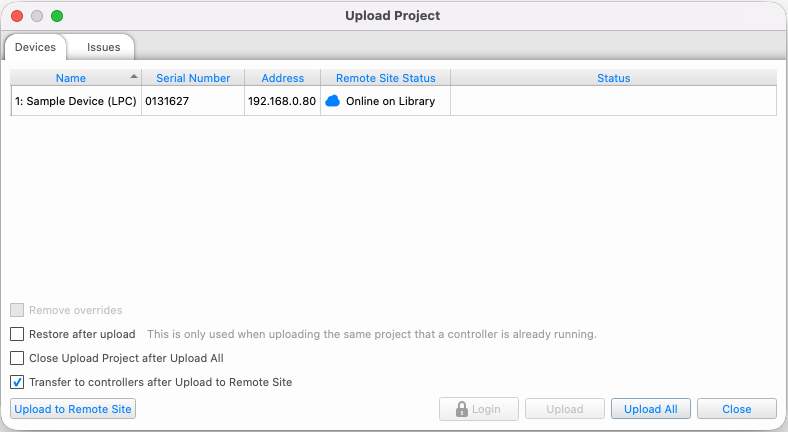
💡 Tip: Express always prefers a local connection. If the controller is reachable on your network, Express uploads locally rather than through Pharos Cloud. Check the site’s name appears in the Upload dialogue to confirm the upload is going via Pharos Cloud.
Get firmware from the online library
Each controller’s Firmware tab holds a library of compatible firmware for that device, so there is no need to find files in an install folder or upload them by hand.
- Open the controller in Pharos Cloud and navigate to the Firmware tab.
- Select the version you want, using the button to the left of its entry.
- Select Transfer in the toolbar and confirm.
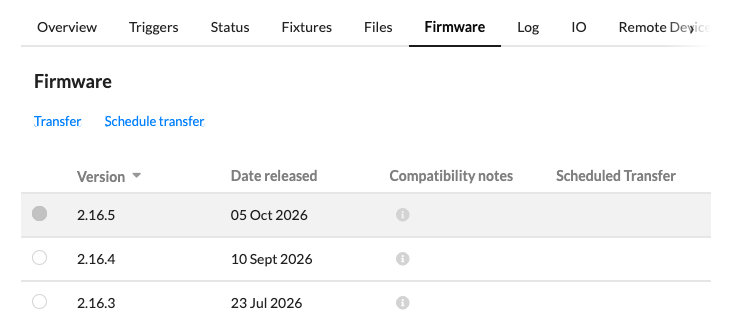
As with project files, Schedule Transfer lets you set the update for a time when the project isn’t lit. Transfers send files in small sections to cope with poor connections, and the controller’s Log tab records progress.
💡 Tip: Some firmware versions may carry compatibility notes. Read them before you transfer.
Portal-only: file transfer across your organisation
With your own Pharos Cloud Portal, you can take file transfer even further by sending one file to many controllers across many sites at once.
Add a file to My files
On the My files tab, select Upload file to add one from your computer, or choose a file already on the Files tab of any controller you have access to. Give it a clear name and description so the rest of the team knows what it is for.
Send a file to many controllers
- Open the Options drop-down beside the file and select Transfer.
- Choose the controllers to receive it. Search for specific ones with Select devices, or tick All matching devices to send it to every controller of that model in the list.
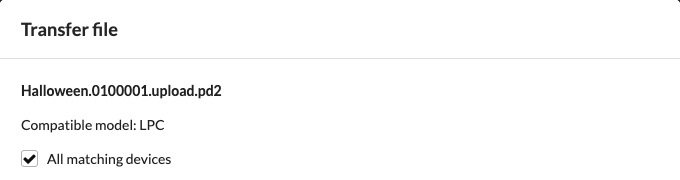
💡 Tip: The list only offers controllers of the matching model, so All matching devices rolls one update out across a whole estate in a single selection. Use Edit and Delete in the same Options drop-down to keep the list tidy as files change.
Find out more
Full details of every feature can be found in Pharos Cloud documentation under Files, Firmware and My files. New to Pharos Cloud? Start with the Quick start.
